ModuRadio AMステレオ 再現VST (C-QUAM)
- ダウンロード商品製品版/Paid version¥ 1,000
- ダウンロード商品体験版/Trial version¥ 0無料ダウンロードModuRadio-v0.1.0-Trial.zip(23.3 MB)無料ダウンロードModuRadio-v0.2.0-Trial.zip(25.1 MB)無料ダウンロードModuRadio-v0.3.0-Linux-Trial.zip(10.7 MB)無料ダウンロードModuRadio-v0.3.0-Windows-Trial.zip(10.9 MB)無料ダウンロードModuRadio-v0.3.0-macOS-Trial.zip(26.2 MB)ModuRadio-v0.1.0-Trial.zipModuRadio-v0.2.0-Trial.zipModuRadio-v0.3.0-Linux-Trial.zipModuRadio-v0.3.0-Windows-Trial.zipModuRadio-v0.3.0-macOS-Trial.zip
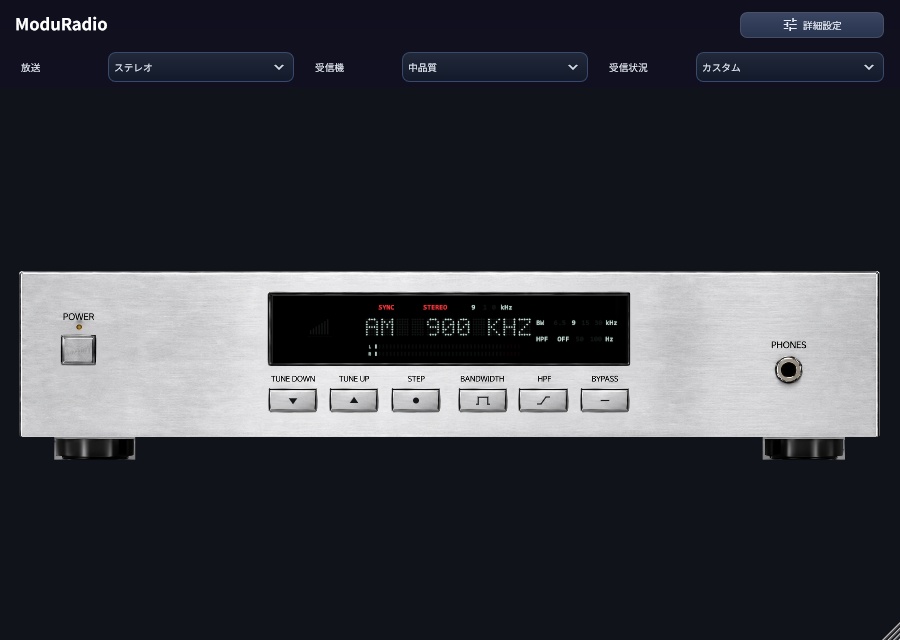
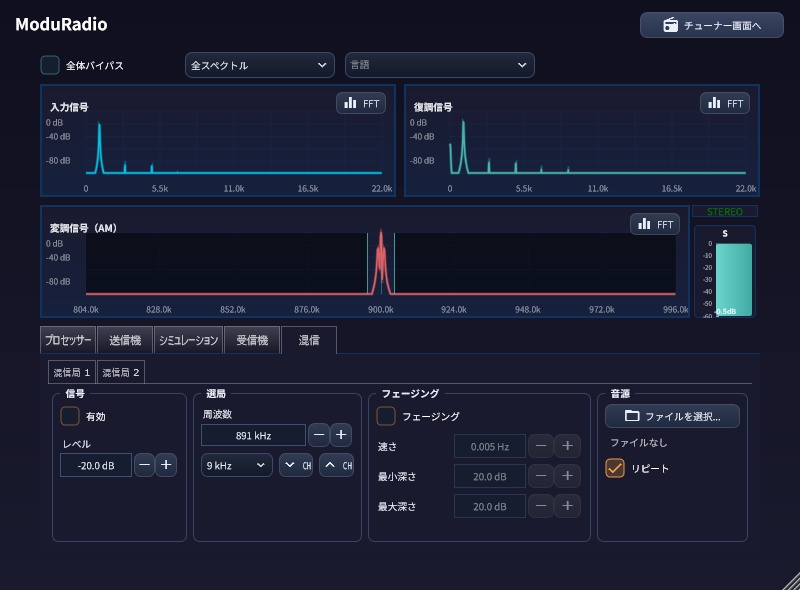
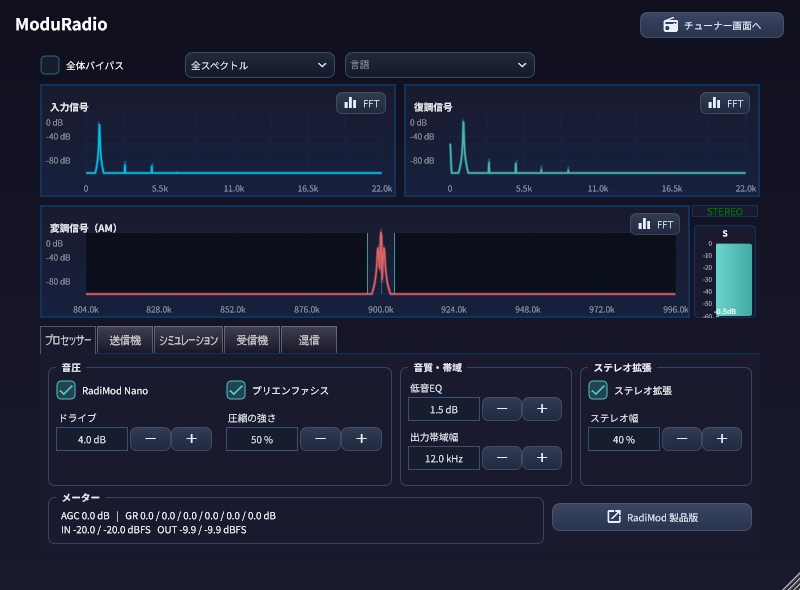
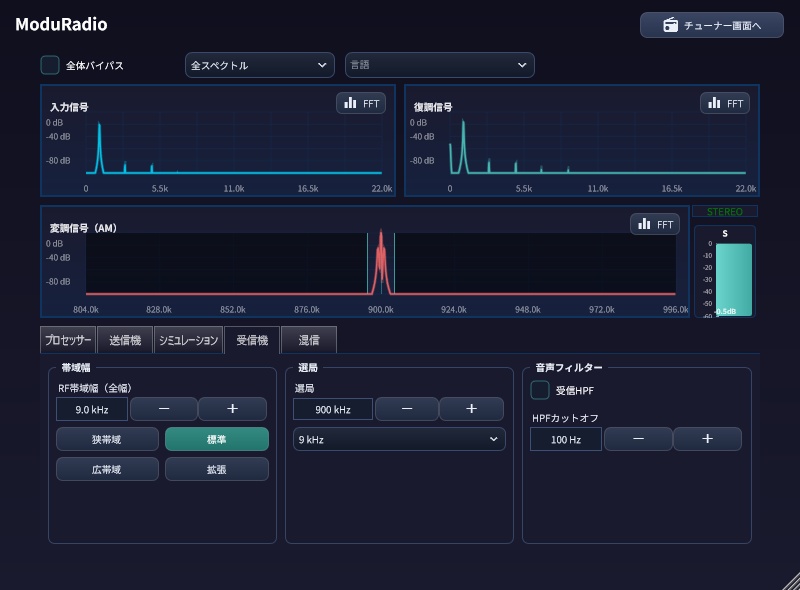
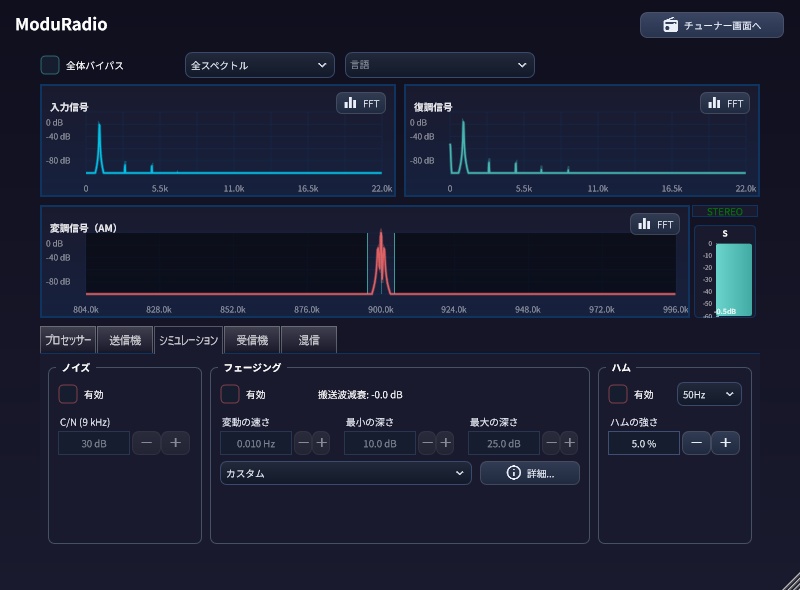
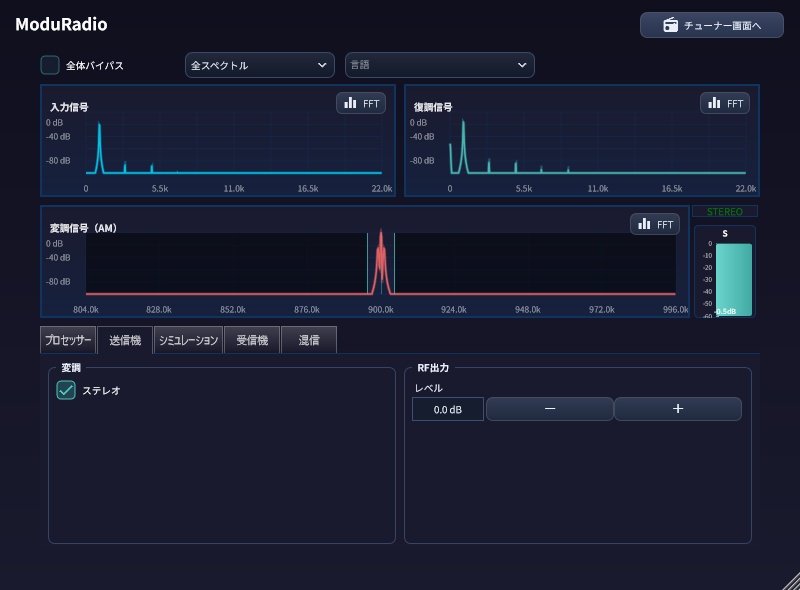
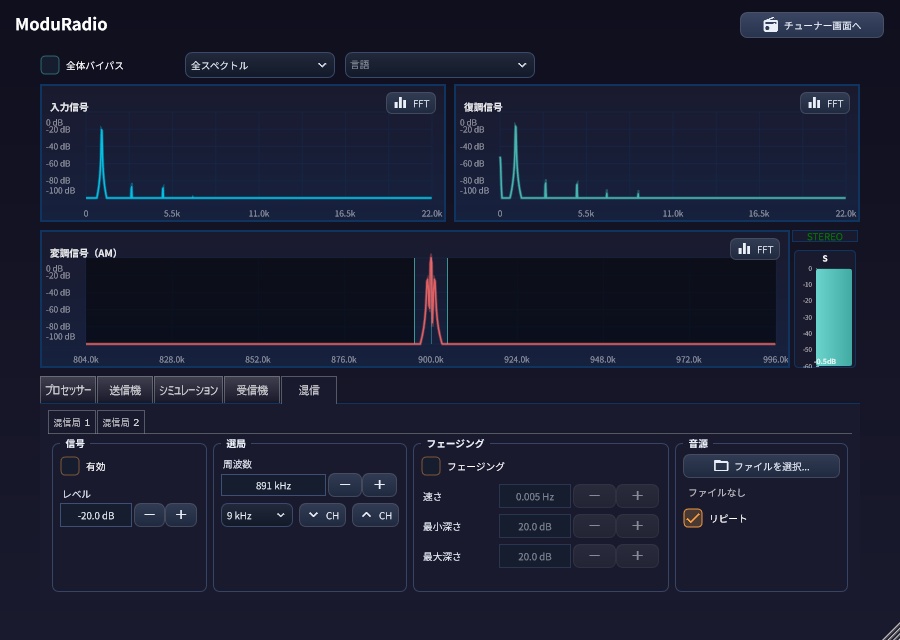
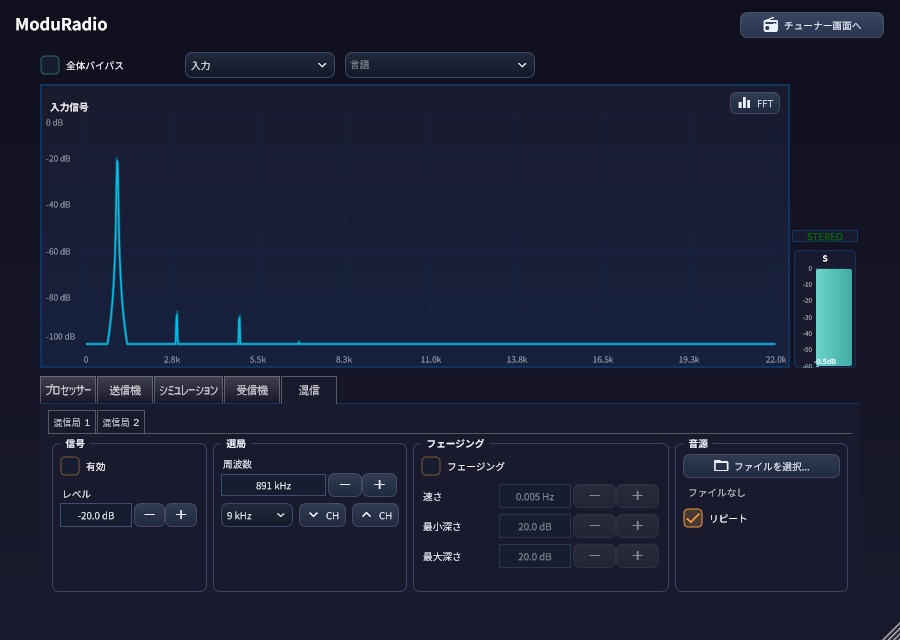
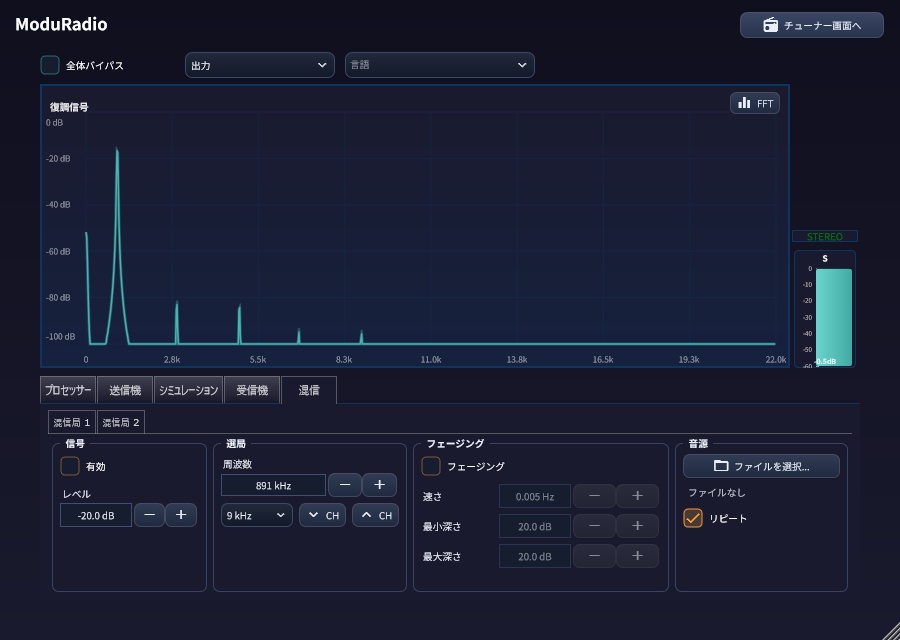
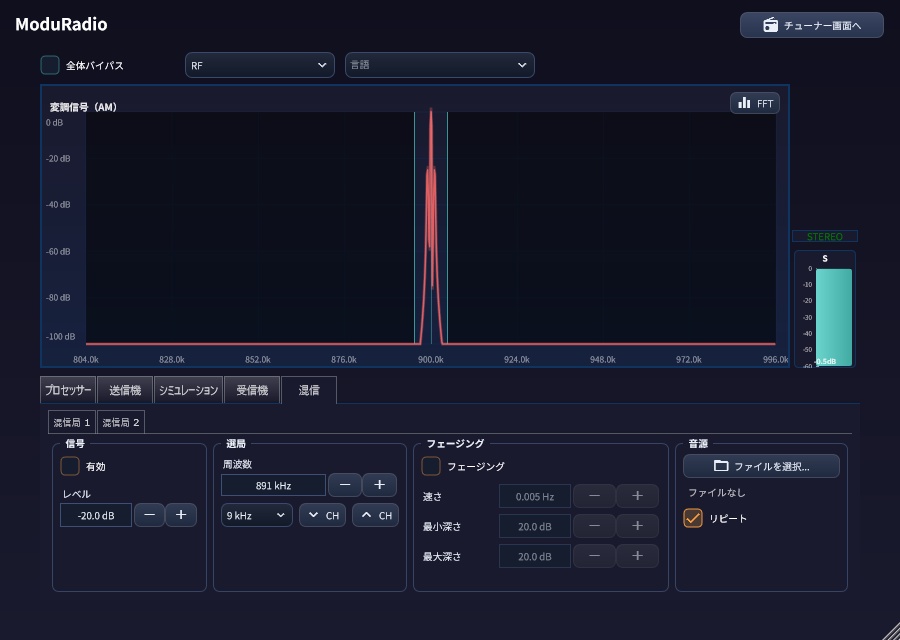
かつて私たちがノイズ混じりで聴いた、あの「深夜ラジオ」の質感を再現できるVSTプラグインです。 ただのイコライザやフィルタ処理ではなく、放送機器と電波を忠実にシミュレートすることで、空中を伝播する際に混入するノイズ、電離層の影響で音がうねる「フェージング」、混信、ビートノイズといった現象を、DAW上で忠実にシミュレートします。 さらに、かつて放送されていたAMステレオ放送「C-QUAM」にも対応。現代のクリアな音源に、時空を越えたノスタルジーと、独特の温かみのある空気感を吹き込みます。 ■ 起動したら、つまみではなくラジオが出てきます(v0.3.0 新機能) 設定画面ではなく、ラジオ受信機そのものの画面から始まります。選ぶのは3つだけ。 ・放送 … ステレオ(C-QUAM)/モノラル ・受信機 … 低品質/中品質/高品質(音のこもり具合) ・受信状況… 良好/普通/悪い/最悪(ノイズとフェージング) 「普通」なら少しノイズが乗る程度、「悪い」で電波が揺れ始め、「最悪」では遠距離受信のように深く落ち込みます。専門用語なしで狙った質感に届きます。 本体のボタンでは選局(9 / 10 / 1 kHzステップ)、帯域、低音カットを切り替え。放送局の周波数からずらせば、実機同様に音が濁り、離れるほど聞こえなくなります。液晶には受信強度、周波数、ステレオ同期状態が出ます。 細かく追い込みたいときは、右上のボタンで詳細設定へ。全パラメーターが個別に開きます。 ■ 実機の挙動を、そのまま 音を「それらしく」加工するのではなく、放送の流れを順番に通しています。 ◆ 放送局の音声プロセッサー(RadiMod Nano) 民放で使われる Orban OPTIMOD-AM 9100B を参考にした6バンド構成。ドライブ、圧縮の強さ、低音EQ、出力帯域幅、プリエンファシス、ステレオ拡張を調整可能。放送特有の詰まった密度感はここで作られます。 ◆ 送信機とC-QUAMステレオ モトローラが開発したAMステレオ方式を再現。ステレオ同期すると画面に表示が点灯し、受信状態が悪化すると実機と同じようにステレオが外れてモノラルに落ちます。 ◆ 電波の伝搬 フェージングは速さと落ち込みの深さ(最小・最大)を指定でき、落ち込み方は毎回ランダムに変わります。伝搬モデルで地上波と上空波を混ぜると、周波数ごとに減衰の仕方が変わり、ステレオ分離の崩れや音の濁りまで再現されます。ノイズはC/N(搬送波対雑音比)で設定。電源由来のハムは50Hz/60Hzを選べます。 ◆ 混信 別の放送局を2局まで重ねられます。無変調キャリアなら周波数差ぶんのビート音(ピー音)、音声ファイルを読み込めばその局の番組が混ざります。同じ周波数に重ねると位相差でステレオが崩れ、混信局ごとに独立したフェージングもかけられます。 ◆ 受信機 RF帯域幅を3〜30 kHzで設定。狭帯域・標準・広帯域・拡張のプリセットと低音カット(50 / 100 Hz)で、安いラジオの詰まった音から良質なチューナーの広い音まで作り分けられます。 ◆ スペクトラム表示 入力・変調後(900 kHz中心のRF)・復調後を同時または個別に表示。波形表示にも切り替え可能。混信局の山や、選局をずらすと受信帯域が搬送波から外れる様子が目で見えます。 ■ 使い方のヒント 手のひらサイズのAMラジオ … 受信機「低品質」+受信状況「普通」、低音カット100 Hz。夜間の遠距離受信 … 受信状況「最悪」、フェージング「大きく弱まる」、C/N 15〜20 dB、混信局を9 kHz離して-20 dB。良好な環境のAMステレオ … 放送「ステレオ」+受信機「高品質」+受信状況「良好」、出力帯域幅10〜12 kHz。素材にAM感だけ足す … 受信状況「良好」でノイズとフェージングを切り、帯域だけ絞る。 楽曲のイントロ、映像の回想シーン、ゲームの環境音、ラジオ風ナレーションなど、時代や距離を一瞬で感じさせたい場面に向いています。 ■ 動作環境 Windows 10/11(64bit)/VST3・スタンドアロン CPU: Intel Core i5 / AMD Ryzen 5 以上、RAM 4GB以上 macOS(VST3・AU)とLinux(VST3)でも動作しますが、開発者がMacを所有していないため動作サポートはありません。体験版で動作を確認してからご購入ください。 ■ 同梱物・表示言語 プラグイン本体(VST3・スタンドアロン)と、日本語・英語の取扱説明書(PDF)。画面写真と各パラメーターの目安の数値つき。表示は日本語・英語に対応し、初回はPCの言語設定に従います。 ■ 体験版 1分ごとに製品版の案内音声が入り、購入のご案内が表示されます。制限はこの2点のみで、音質・機能は製品版と同じです。 ■ サポート/ライセンス X(旧Twitter): @mouse_soft_y 著作権は開発者に帰属します。個人利用・商用利用ともに可能です。再配布は禁止します。 This VST plugin allows you to recreate the texture of "late-night radio" that we once listened to amidst noise. It's not just an equalizer or filter; it simulates broadcasting equipment and radio waves, replicating noise picked up in the air, "fading" where sound wavers through ionospheric effects, interference and beat noise directly within your DAW. It also supports "C-QUAM," the AM stereo system that was once broadcast, injecting nostalgia and a warm ambiance into modern, clear sources. ■ It opens on a radio, not a control panel (new in v0.3.0) Three menus decide the sound. - Broadcast: C-QUAM stereo or mono - Receiver: low, medium or high quality, which is how muffled it sounds - Reception: clear, normal, poor or very poor, covering noise and fading together Normal adds a little hiss, Poor makes the signal waver, and Very poor gives the deep fades of a distant station at night. The radio's buttons handle tuning (9 / 10 / 1 kHz steps), bandwidth and bass cut. Tune away and the sound muddies, then disappears, as on real hardware. The display shows signal strength, frequency and stereo lock. One button opens the detailed settings. ■ Real behaviour, stage by stage The signal runs through the broadcast chain in order, not a generic radio effect. Station audio processor: a six-band design based on the Orban OPTIMOD-AM 9100B, with drive, compression, bass EQ, output bandwidth, pre-emphasis and stereo enhancement. The dense, packed broadcast sound comes from here. Transmitter and C-QUAM stereo: the Motorola AM stereo system with a lock indicator. As reception degrades the decoder drops out and collapses to mono, just like real hardware. Propagation: fading with an adjustable rate and a range of dip depths, each dip landing somewhere inside it. Mixing ground and sky waves makes the loss vary across the band, smearing stereo separation the way it does on air. Noise is set as carrier to noise ratio, and mains hum is 50 or 60 Hz. Interference: up to two stations. An unmodulated carrier gives the heterodyne whistle; an audio file gives that station's programme. Put one on the same frequency and the phase difference tears the stereo image apart. Each has its own fading. Receiver: bandwidth from 3 to 30 kHz with four presets, plus a bass cut at 50 or 100 Hz, from a cheap pocket radio to a good tuner. Spectrum displays: input, modulated RF and demodulated audio, together or one at a time, with a waveform mode. ■ Recipes Pocket radio: Low quality receiver, Normal reception, bass cut at 100 Hz. Distant station at night: Very poor reception, Deep fades, C/N 15-20 dB, an interfering station 9 kHz away at -20 dB. Clean AM stereo: Stereo broadcast, High quality receiver, Clear reception, output bandwidth 10-12 kHz. A touch of AM: Clear reception with noise and fading off, then narrow the bandwidth alone. ■ Requirements Windows 10/11 (64-bit), VST3 and standalone. Intel Core i5 / AMD Ryzen 5 or better, 4 GB RAM. It also runs on macOS (VST3 / AU) and Linux (VST3), but these are not supported because the developer does not own a Mac. Please try the trial version first. ■ Included and language The plugin plus Japanese and English manuals as PDFs, with screenshots and suggested values for every control. The interface is in Japanese or English and follows your system language. ■ Trial version The trial plays a short announcement once a minute and shows a purchase reminder. Nothing else is limited. ■ Support and licence X (formerly Twitter): @mouse_soft_y Copyright belongs to the developer. Personal and commercial use are both permitted. Redistribution is prohibited.
おすすめ商品/Recommended
民放ラジオ局に導入されている機材「Orban OPTIMOD」を再現した、Radimod audio processorと組み合わせて使うことでより実際のラジオ放送の近い音圧と音質にすることができます! Radimod→ModuRadioの順序で接続してください https://mousesoft.booth.pm/items/4524861 By combining it with the Radimod audio processor, which replicates the “Orban OPTIMOD” equipment used by radio stations worldwide, you can achieve sound pressure and audio quality closer to actual radio broadcasts! Please connect in the order: Radimod → ModuRadio https://mousesoft.booth.pm/items/4524861
更新履歴
更新履歴 【v0.1.0】 初期リリース 【v0.2.0】 - 送信レベルパラメータ追加 - 混信2局対応 【v0.3.0】 - 日本語対応 - チューナー画面を追加 - 受信状況プリセット追加 - 受信帯域「拡張」追加 - UIの改善 - フェージングの改善 - 実ハードウェアに近づけた復調方式の改善 - 日本語/英語のPDF説明書を同梱 - プリエンファシスを追加 - オーディオプロセッサ追加